Three files, one table
Step-by-step manual
01The business question
Q-Expert Distributors receives its sales as one file per month: Sales_2025_01.csv, Sales_2025_02.csv and Sales_2025_03.csv. The team wants all of them in one table, and next month's file should load without anyone touching the script.
02Before you start
- Unzip the episode package. You need
data/Sales_2025_01.csv…Sales_2025_03.csvand, for the last step,data/Raw/Sales_2025_01.qvd…_03.qvd. - Episode 1 starts from an empty project, so there is no
start.qepto import. From episode 2 on, each package brings the project as the previous episode left it. - In Qlik, create a folder data connection called QXDistributors that points to the
datafolder you unzipped. The script reads every file through it. Inside thatdatafolder, also create the folderTransform/_QVS: Q-Expert's script files go there (see Check your result). - Want to look inside the files first? Q-Explorator, the Q-Fábrica team's desktop tool, opens CSV, Excel, Parquet and QVD files so you can see their content and quality before you model.
03Step by step
-
1
Create the project
Click New Project in the top bar. Name it
Q-Expert Distributorsand click Create Project. Every model starts on a clean canvas.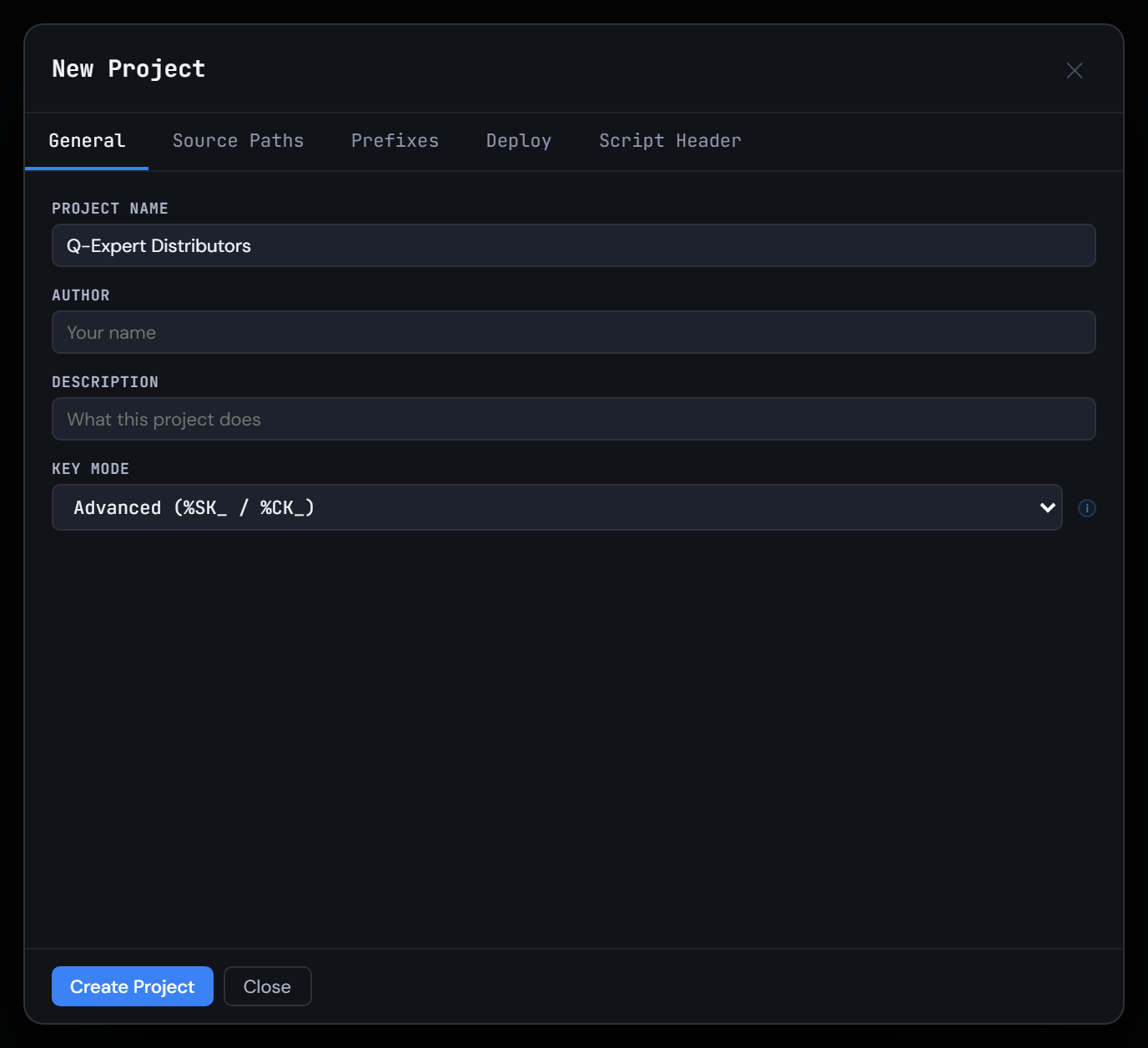
Figure 1.1 — Create the project -
2
Say where the files live
Open Project Settings → Source Paths. Add a mapping with the variable name
vPathRawand the folderQXDistributors, so the row readsvPathRaw = lib://QXDistributors/. In the same tab, setvTxfPathtolib://QXDistributors/Transform/: the work QVDs and the script files Q-Expert splits out live there, under the same connection.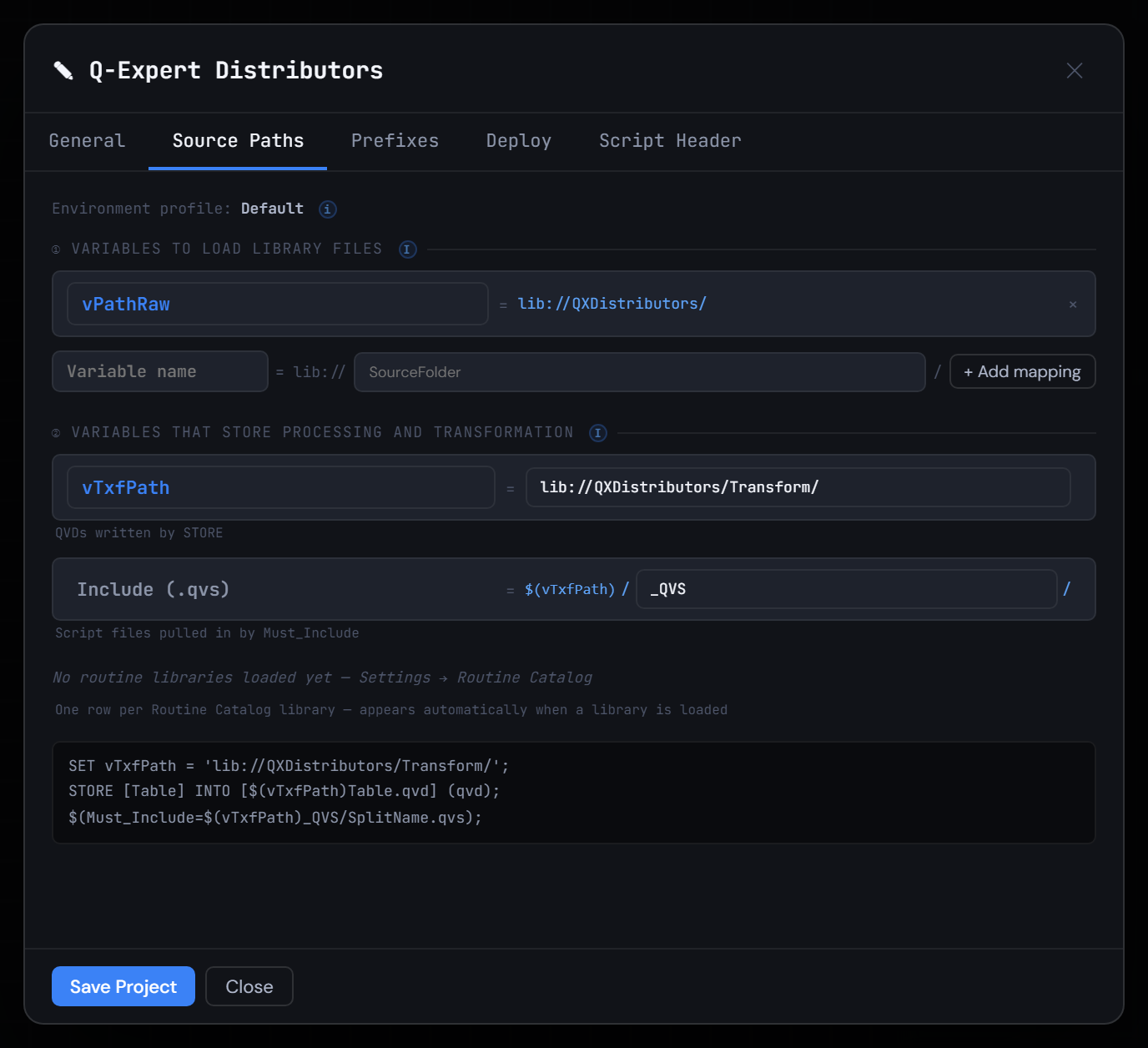
Figure 1.2 — Say where the files live -
3
Set the project's number formats
These files use a dot for decimals and a comma for thousands. Click $(x) in the top bar and, on the Predefined tab, set:
- ThousandSep
, - DecimalSep
. - MoneyThousandSep
, - MoneyDecimalSep
. - MoneyFormat
$ #,##0.00;-$ #,##0.00
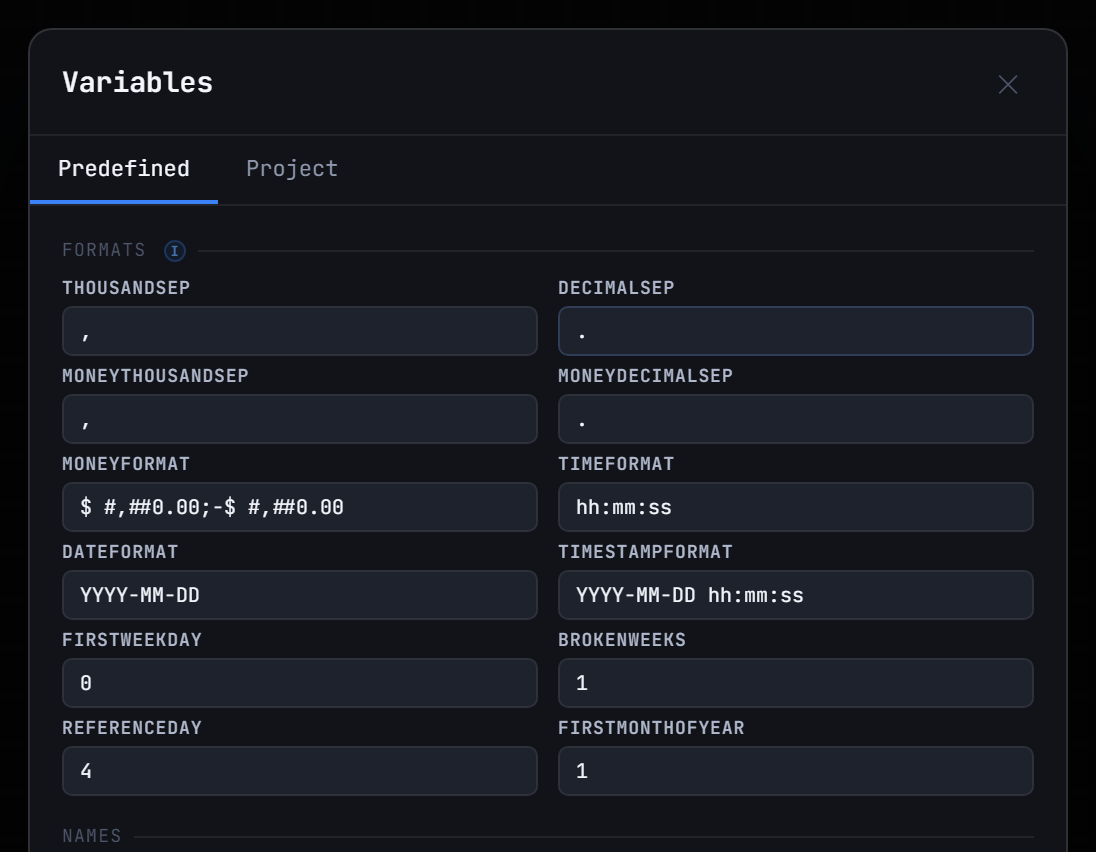
Figure 1.3 — Set the project's number formats - ThousandSep
-
4
Add the project variables
Switch to the Project tab and add, each with the + button:
vEnvironment=PRODvBaseCurrency=COP(episode 4 uses it)
Then click Save.
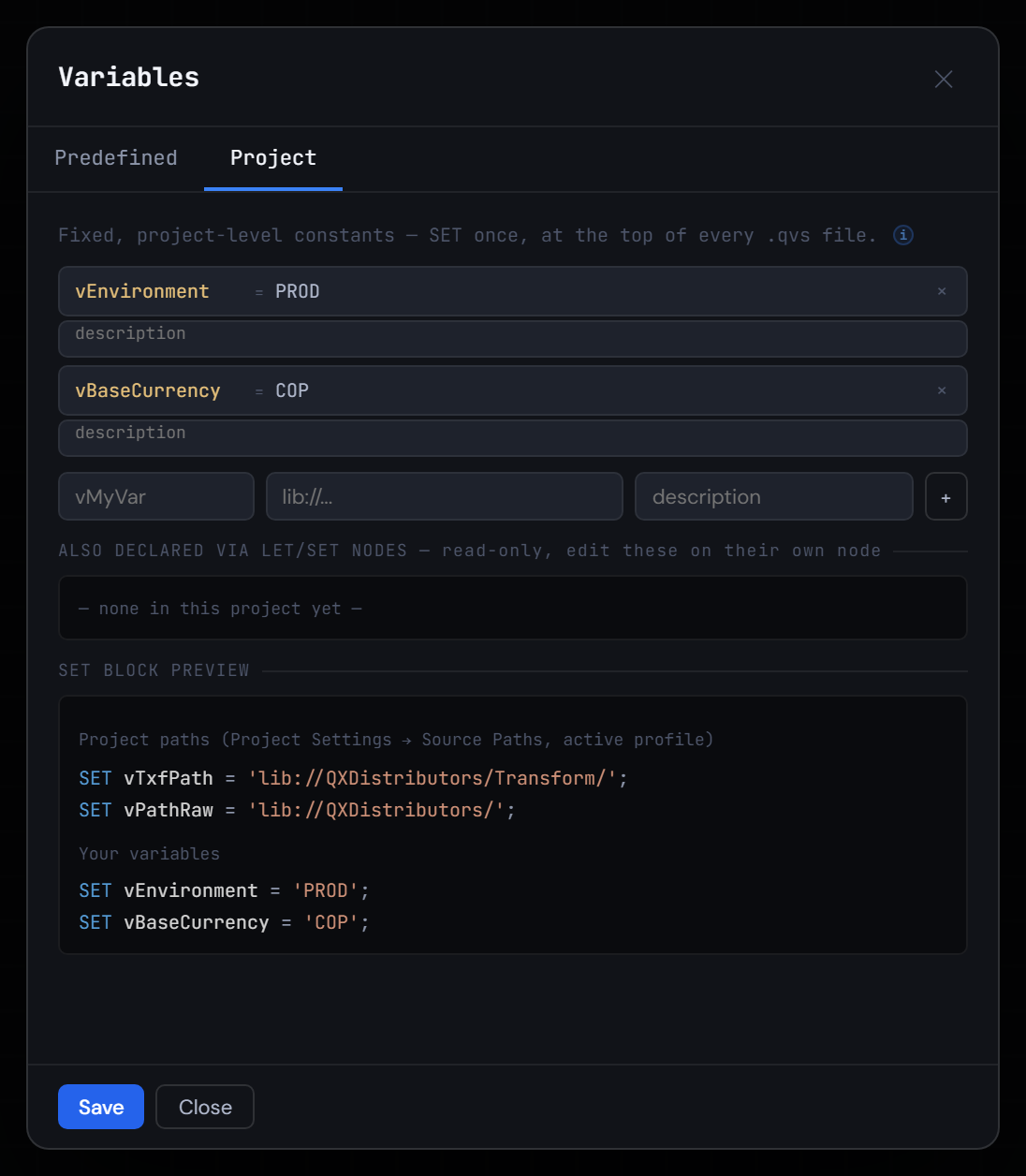
Figure 1.4 — Add the project variables -
5
Add the three sales files
In the Library, click Add Files and pick the three
Sales_2025_0N.csvfiles. Q-Expert sees the same columns in all of them and groups them under one pattern,Sales_*.csv.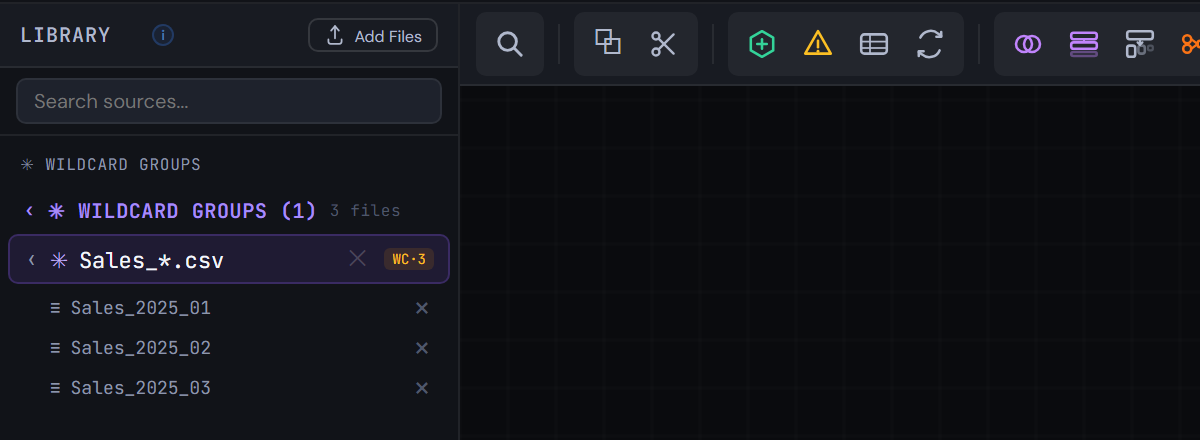
Figure 1.5 — Add the three sales files -
6
Drag the group onto the canvas
Drag the
Sales_*.csvgroup header onto the canvas. One RAW node reads every month: the three files of today and the ones still to come.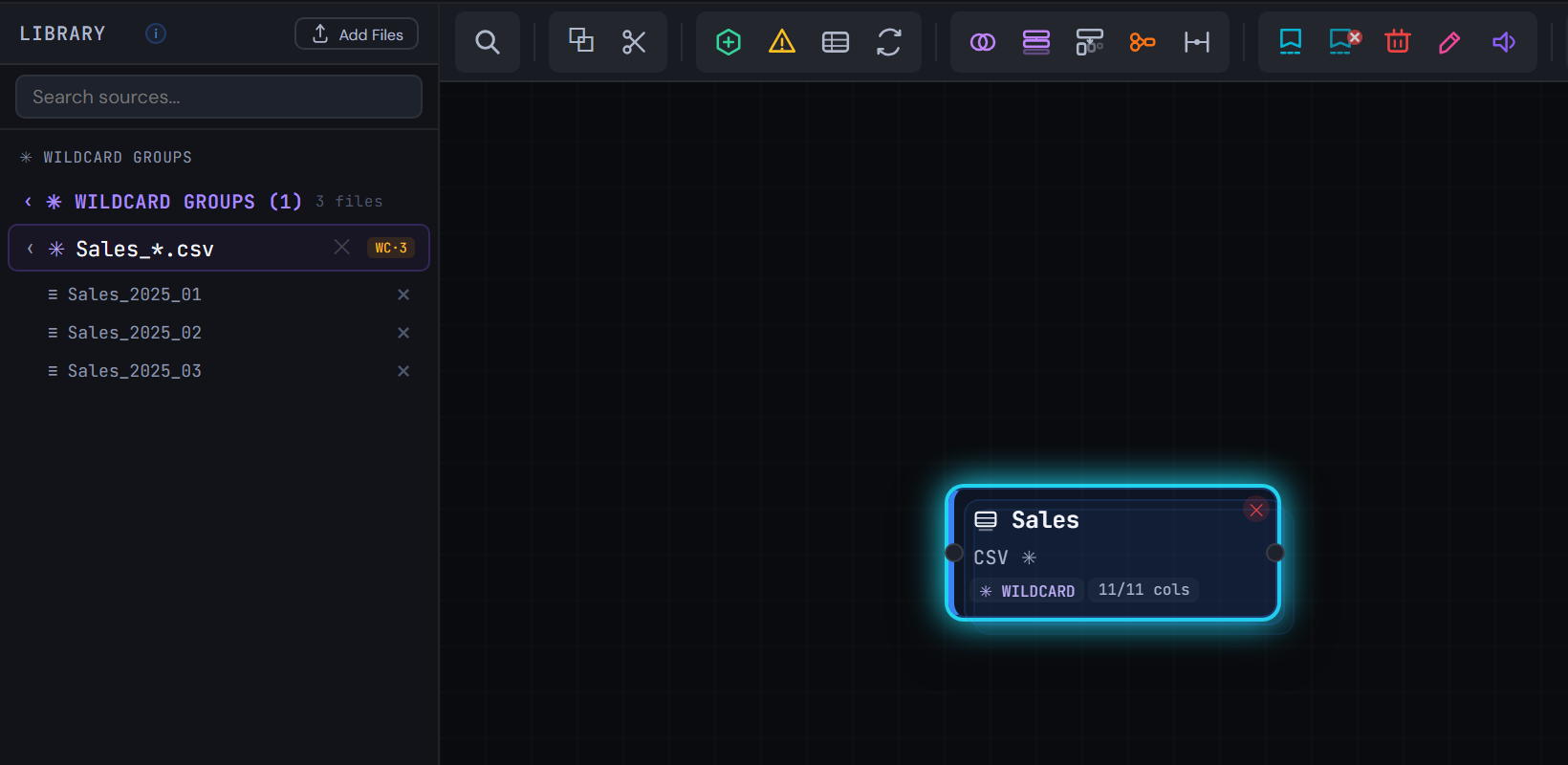
Figure 1.6 — Drag the group onto the canvas -
7
Name it as a work table
Select the node. On the Config tab, type
tmp_SalesRawas the table name and press Tab.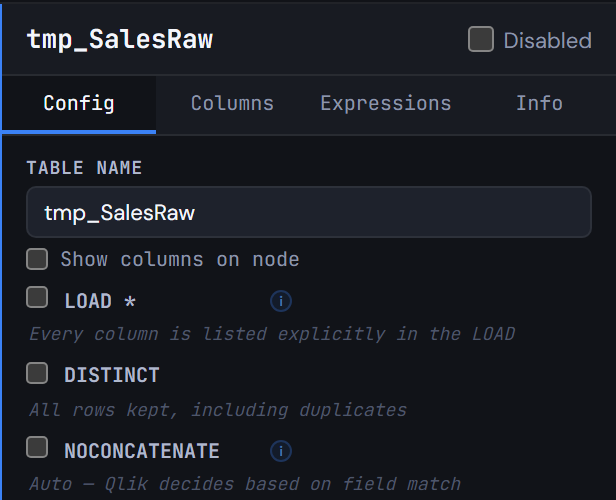
Figure 1.7 — Name it as a work table -
8
Say why, in a comment
On the Info tab, write in Comments:
Sales arrive as one file per month; the wildcard reads every month, including next month's file.It goes into the script right above the LOAD.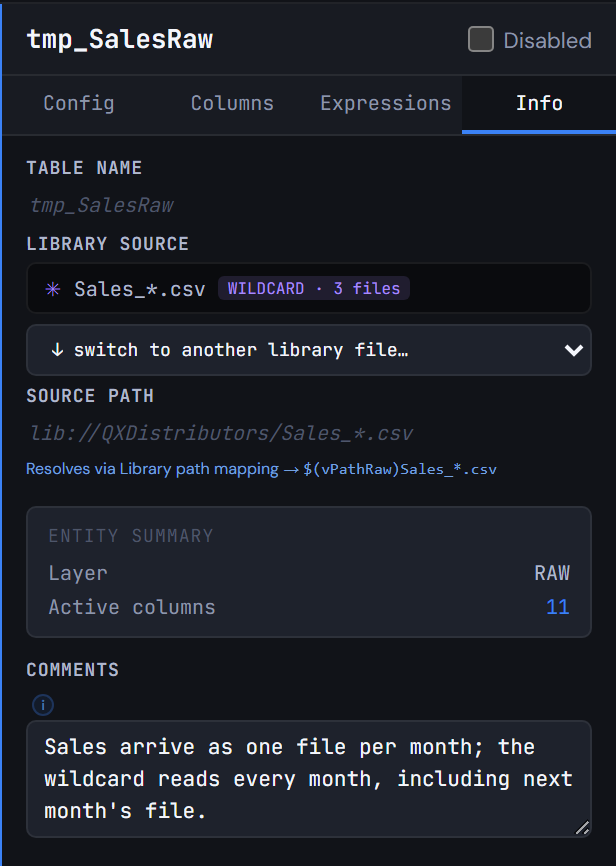
Figure 1.8 — Say why, in a comment -
9
Generate the script
Click Generate Syntax and open the
Flow_1tab. One LOAD with an asterisk in the path, read through the variable:FROM [$(vPathRaw)Sales_*.csv]. Next month's file just works.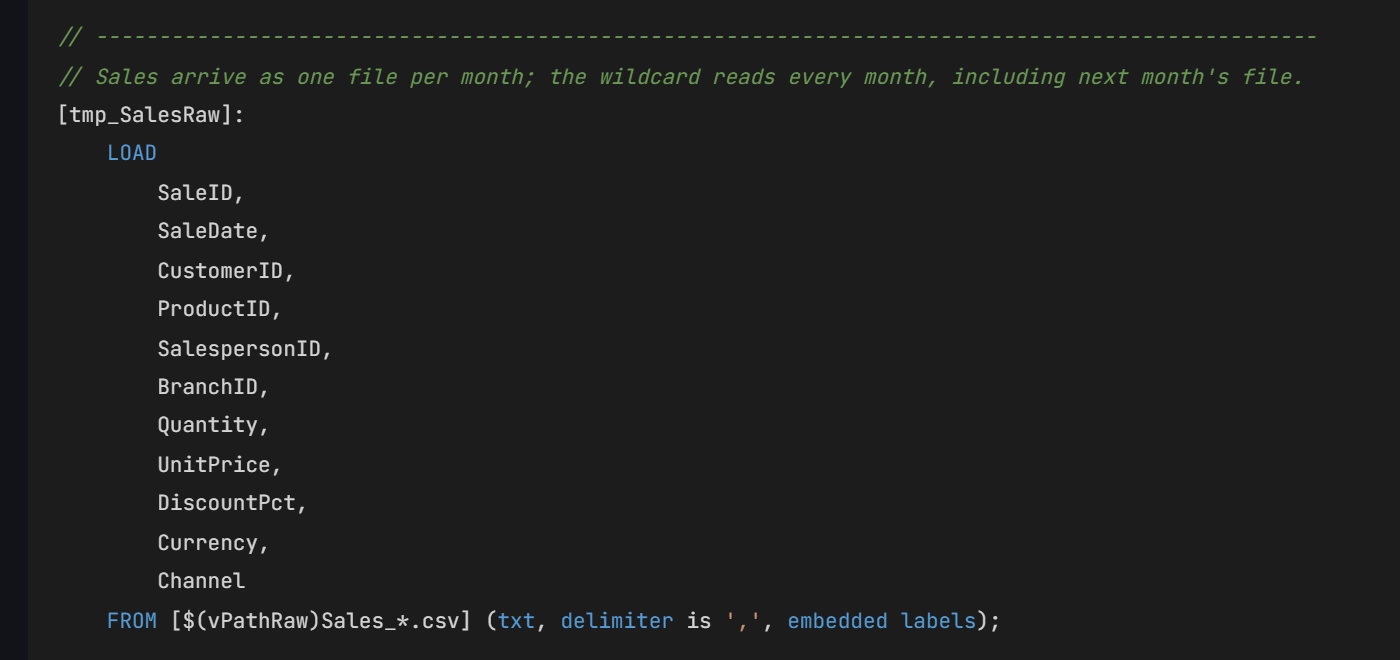
Figure 1.9 — Generate the script -
10
The same idea with QVD files
Add the three files from
data/Raw/. They are QVDs, so the Library makes a second group,Sales_*.qvd, next toSales_*.csv. Dragged onto the canvas, it reads them with(qvd). The course continues with the CSV files, so leave this group in the Library.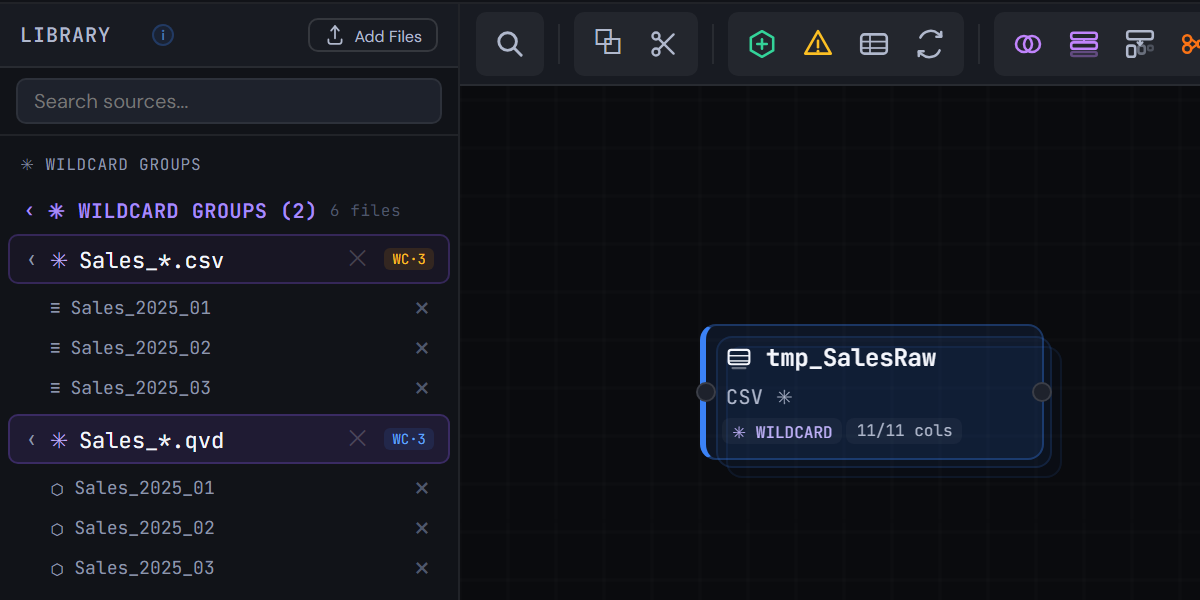
Figure 1.10 — The same idea with QVD files
04Check your result
- The canvas has one RAW node,
tmp_SalesRaw, with 11 of 11 columns: SaleID, SaleDate, CustomerID, ProductID, SalespersonID, BranchID, Quantity, UnitPrice, DiscountPct, Currency and Channel. - Run the script in Qlik:
tmp_SalesRawhas 330 rows, 110 from each month. - Q-Expert splits the script in two:
_Main, the only part you paste into Qlik, andFlow_1.qvs, a file that_Mainreads withMUST_INCLUDE. Both should match the ones below, except the date in the header and a// Q-Expert · Ref …line with your own reference.
_Main
Paste into QlikThis is the only script you paste into Qlik Sense: open the app's Data load editor, replace its content with this and reload. Each $(MUST_INCLUDE=…) line reads one of the files below in its place, so the rest of the model never goes into the editor.
Show script · 42 lines
/*----------------------------------------------------------------------------------------
	Description [MAIN]:

	-------------------------------------------------------------------------------------
	Author:	The Q-Fábrica team -
	Date:	[2026-11-02]
	-------------------------------------------------------------------------------------
	Changes
	-------------------------------------------------------------------------------------
	Author		Date		Detail
	-------------------------------------------------------------------------------------

	-------------------------------------------------------------------------------------
	Copyright © Q-Expert Distributors.
	Q-Expert Qlik Developer Framework. www.qfabrica.com
----------------------------------------------------------------------------------------*/

SET ThousandSep=',';
SET DecimalSep='.';
SET MoneyThousandSep=',';
SET MoneyDecimalSep='.';
SET MoneyFormat='$ #,##0.00;-$ #,##0.00';
SET TimeFormat='hh:mm:ss';
SET DateFormat='YYYY-MM-DD';
SET TimestampFormat='YYYY-MM-DD hh:mm:ss';
SET MonthNames='Jan;Feb;Mar;Apr;May;Jun;Jul;Aug;Sep;Oct;Nov;Dec';
SET LongMonthNames='January;February;March;April;May;June;July;August;September;October;November;December';
SET DayNames='Mon;Tue;Wed;Thu;Fri;Sat;Sun';
SET LongDayNames='Monday;Tuesday;Wednesday;Thursday;Friday;Saturday;Sunday';
SET FirstWeekDay=0;
SET BrokenWeeks=1;
SET ReferenceDay=4;
SET FirstMonthOfYear=1;

LET vExecutionDate = Timestamp(Now(), 'YYYY-MM-DD hh:mm:ss');

SET vTxfPath  = 'lib://QXDistributors/Transform/';
SET vPathRaw = 'lib://QXDistributors/';
SET vEnvironment = 'PROD';   // PROD, QA or DEV
SET vBaseCurrency = 'COP';   // Currency every amount is converted to

$(MUST_INCLUDE=$(vTxfPath)_QVS/Flow_1.qvs);
Flow_1.qvs
File · read by MUST_INCLUDENot pasted: saved as a file. On the Flow_1 tab of Generate Syntax, Export downloads Flow_1.qvs (Deploy writes every tab into a folder at once). Put it in lib://QXDistributors/Transform/_QVS/Flow_1.qvs, the Transform/_QVS folder inside your QXDistributors folder. If the file is not there, the reload stops with an error: that is what MUST_INCLUDE is for.
Show script · 33 lines
/*----------------------------------------------------------------------------------------
	Description [Flow_1]:

	-------------------------------------------------------------------------------------
	Author:	The Q-Fábrica team -
	Date:	[2026-11-02]
	-------------------------------------------------------------------------------------
	Changes
	-------------------------------------------------------------------------------------
	Author		Date		Detail
	-------------------------------------------------------------------------------------

	-------------------------------------------------------------------------------------
	Copyright © Q-Expert Distributors.
	Q-Expert Qlik Developer Framework. www.qfabrica.com
----------------------------------------------------------------------------------------*/

// -------------------------------------------------------------------------------------------------
// Sales arrive as one file per month; the wildcard reads every month, including next month's file.
[tmp_SalesRaw]:
    LOAD
        SaleID,
        SaleDate,
        CustomerID,
        ProductID,
        SalespersonID,
        BranchID,
        Quantity,
        UnitPrice,
        DiscountPct,
        Currency,
        Channel
    FROM [$(vPathRaw)Sales_*.csv] (txt, delimiter is ',', embedded labels);
05Why this way
tmp_says it is a work table.tmp_SalesRawis a step on the way toFact_Sales, not part of the final model. Everytmp_table is dropped before the script ends (episode 6).- Wildcard or loop? The wildcard is enough when every file has the same shape and nothing has to be done per file. Episode 2 needs to know which month each row came from, and that calls for a loop.
- Paths and formats in variables. The script never hard-codes a folder or depends on the locale of the Qlik server that runs it. That is what makes it move from development to production unchanged.
- Field names in PascalCase, in English, without spaces. Only keys will share a name across tables later on; anything else would create a synthetic key.
06What comes next
Episode 2: the same files, but we need to know which month each row came from.
Before you model
Q-Explorator is the Q-Fábrica team's desktop tool to explore QVD, CSV, Excel and Parquet files and to convert CSV, TXT and Excel files into QVD. Open the files of each episode in it to see their content and quality first.
About Q-Explorator